S6 Device Settings
Manage a bound device’s name, feature toggles, language, firmware, and mount orientation.
Recommended order: device online (S3) → room created (S5) → add the device under that room → adjust settings later if needed.
6.1 Add a device
Only a family admin can add devices. Check that:
- The device is provisioned and can come online (see S3 Networking).
- A specific room is selected on the home page (not All devices).
- You tap Add device next to that room title.
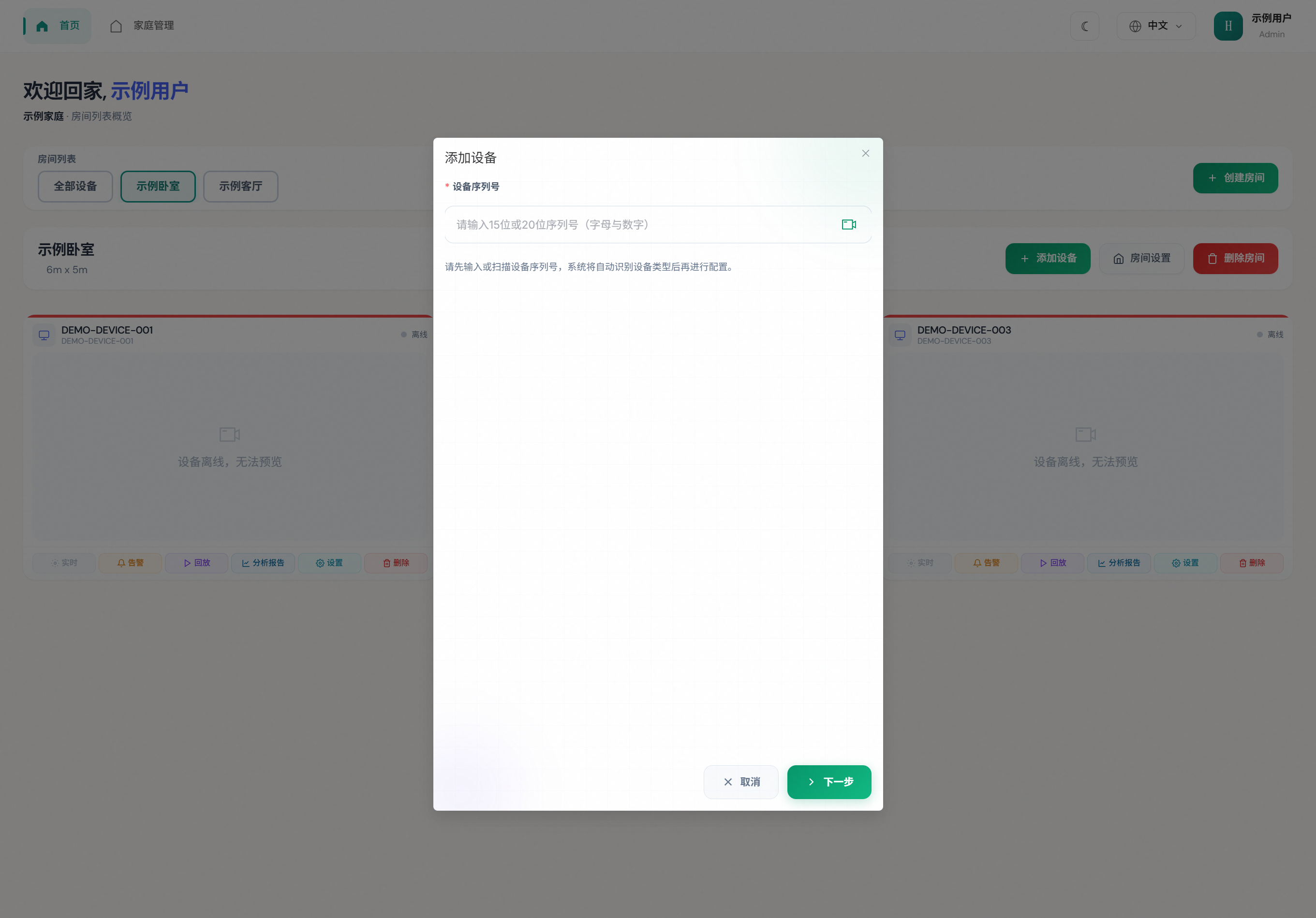
Step 1: Enter or scan the serial number
| Field | Notes |
|---|---|
| Device serial | 15 or 20 alphanumeric characters (case-insensitive; stored uppercase) |
| Scan | Camera icon in the input; on a PC you can also Recognize from image |
Desktop scanning
Laptop cameras blur at close range. Tap Focus, step back to ~30 cm, or photograph with a phone and use Recognize from image.
Tap Next. The platform detects the device type from the serial — you do not pick the type by hand.
How the serial maps to a type
The first character decides:
| First char | Detected as | What you fill in |
|---|---|---|
| B | Vital signs (breath / heart) | Name, voice language |
| C | People count | Name, voice language |
| D | Ceiling fall | Name, voice language |
| Any other | Posture | Name, feature toggles, language, plus orientation (height / tilt / X-Y / heading) |
Vital / ceiling-fall / people-count devices have no 3D orientation canvas. After binding, use Live on the card for the dedicated page.
Step 2: Posture device
Two tabs. Fill Device settings, tap Next for Orientation, then Confirm.
Device settings
| Parameter | Default | Meaning |
|---|---|---|
| Device name | empty (required) | Home-page label, e.g. “Bedroom radar” |
| SMS push | off | Related alerts may notify by SMS when channels are enabled |
| Wave voice | off | Voice prompt related to waving |
| Fall voice | off | Voice prompt related to fall events |
| Long-lie detect | off | More sensitive to long lying / staying on the ground |
| Language | 中文 | Device voice only: 中文 / English / 日本語 / 한국어 |
Tip: for care scenarios, keep fall-related options on; mute voice at night if needed.
Orientation
Must match the real mount. Defaults when adding:
| Parameter | Default | Meaning |
|---|---|---|
| Radar height (m) | 2.5 | Floor to device center; keep error within ~5 cm |
| Down tilt | 30° | vs horizontal; 0° or 30° |
| X position (m) | ~2.5 | 0~room length (X); same canvas as room settings |
| Y position (m) | 0 | 0~room width (Y) |
| Azimuth (°) | 90 | Facing direction, 0–360° |
On the canvas: drag the dot to move; drag the outer orange handle to change heading. Number fields below are for fine-tuning.
TIP
Set room length/width in Room setup first. If you remount the device, update Settings → Orientation again.
Step 2: Vital / ceiling fall / people count
Only device name and language, then Confirm. No radar height or floor position.
After success, a device card appears under that room (online/offline, serial, type tag).
6.2 Change settings later
Open Settings from a home-page device card (posture devices). Two tabs:
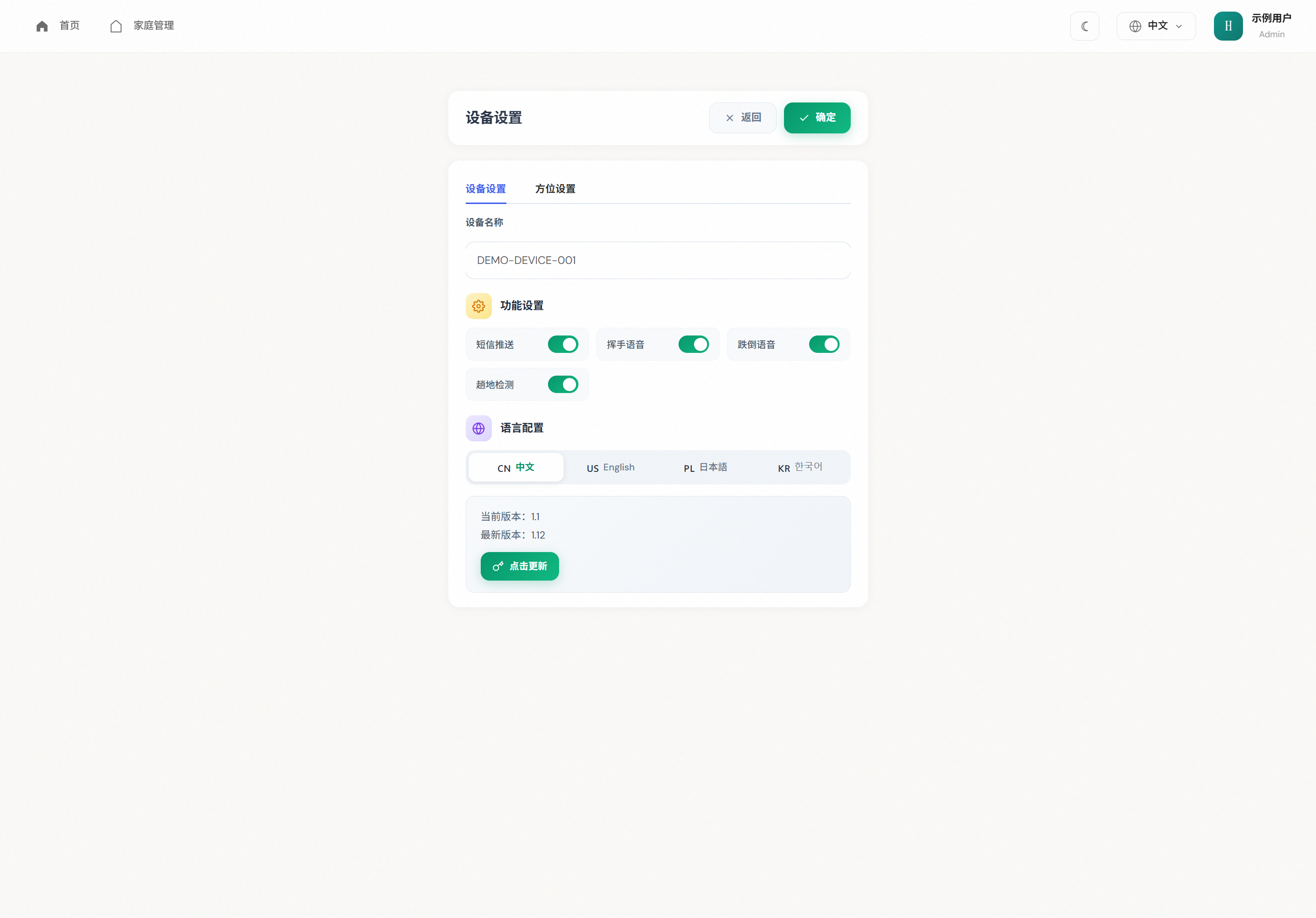
- Device settings: name, feature toggles, language, version
- Orientation: height, tilt, in-room position and heading
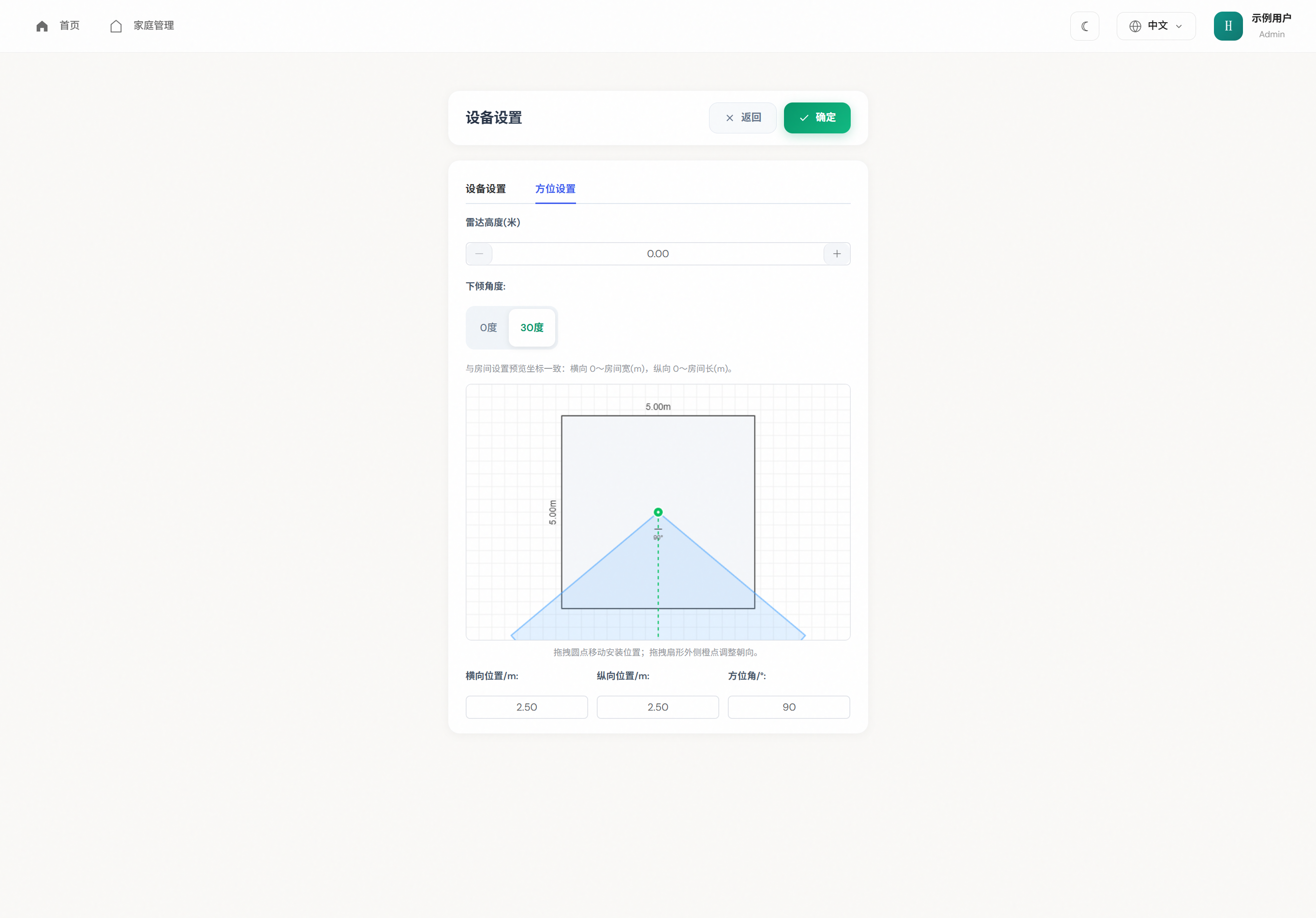
Tap Confirm to save.
Vital / ceiling-fall / people-count devices use their dedicated pages, not this form.
6.3 Device settings tab (bound posture device)
Same fields as when adding, plus firmware:
| Item | Notes |
|---|---|
| Current / latest version | Shown at the bottom |
| Update now | Only when a newer build exists and the device is online and powered |
| Already latest | UI says no update needed |
Do not cut power mid-update.
6.4 Orientation tab
See Orientation in 6.1. Coordinates match room settings: X 0~room length (m), Y 0~room width (m).
6.5 Self-calibration note
Some posture devices offer self-calibration on the live monitoring page (not in this form). Follow on-screen walking steps; turn it off after the device behaves normally.
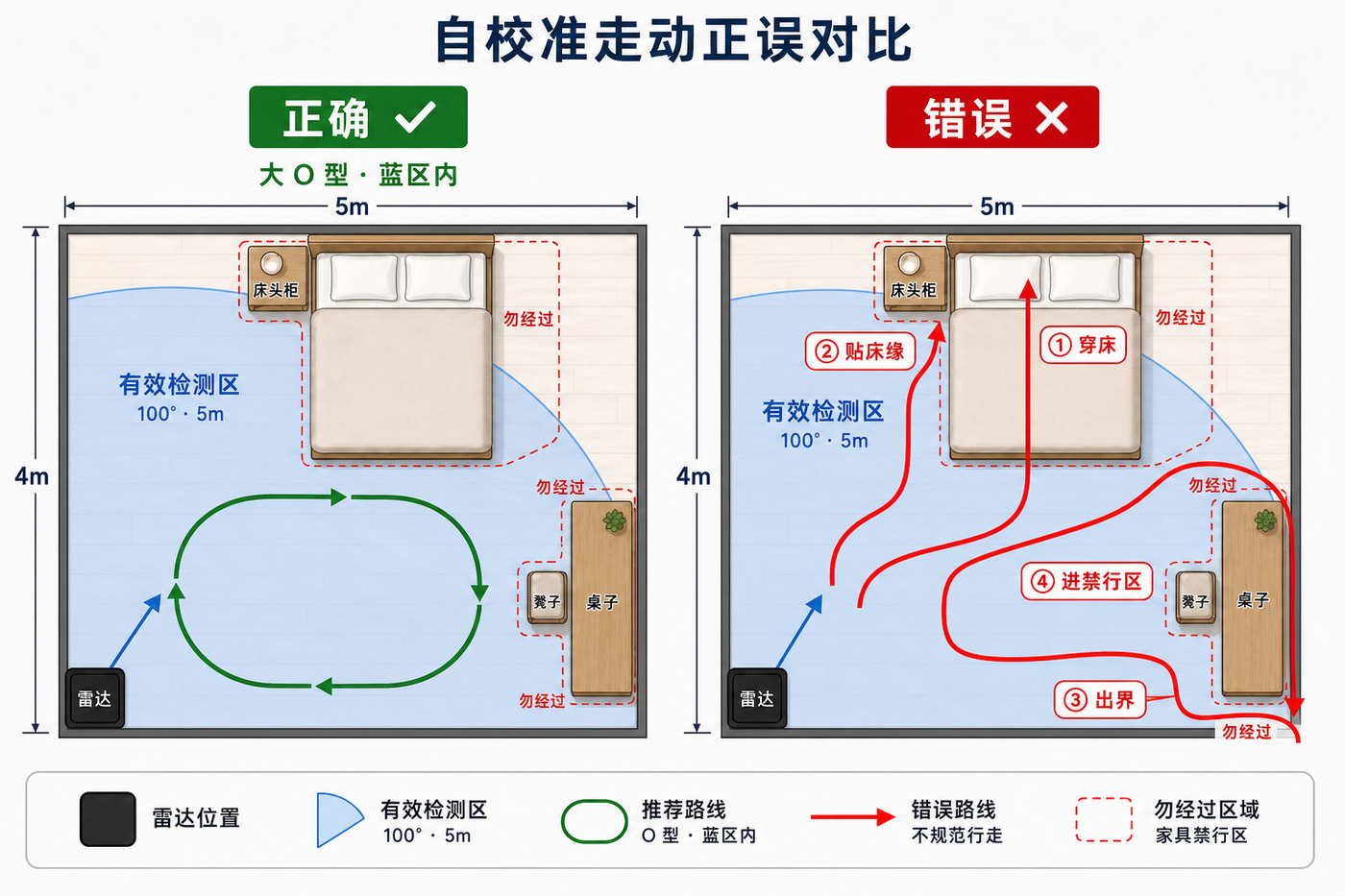
Walk a large O inside the detection zone. Stay off furniture, edges, and out-of-room paths.
6.6 Delete a device
Admins can tap Delete on the card. You must bind again to reuse the device; keep the serial readable.