S5 Room Setup
A room is the monitoring space. Typical order: create the room → arrange it in Room settings → add devices under that room.
In Room settings you mainly do three things on one page:
- Room info (name, length / width / ceiling height, emergency contact)
- Furniture layout (bed, door, window, etc.)
- Feature zones / zone parameters (suppression, dwell, intrusion, multi-person, leave, leave-room)
After changes, tap Save room settings (or Ctrl / ⌘ + S). Room info, furniture, and feature zones are saved together.
On phones, use landscape mode for the 3D canvas.
5.1 Create a room
Only a family admin can create rooms. Members who see an empty home are asked to contact an admin.
Where to tap
- Sign in and enter the target family (see S4 Family & members).
- If the family has no rooms yet, the home page shows “No rooms yet” — tap Create room.
- If rooms already exist, tap Create room next to the room list (on phones this is often a +).
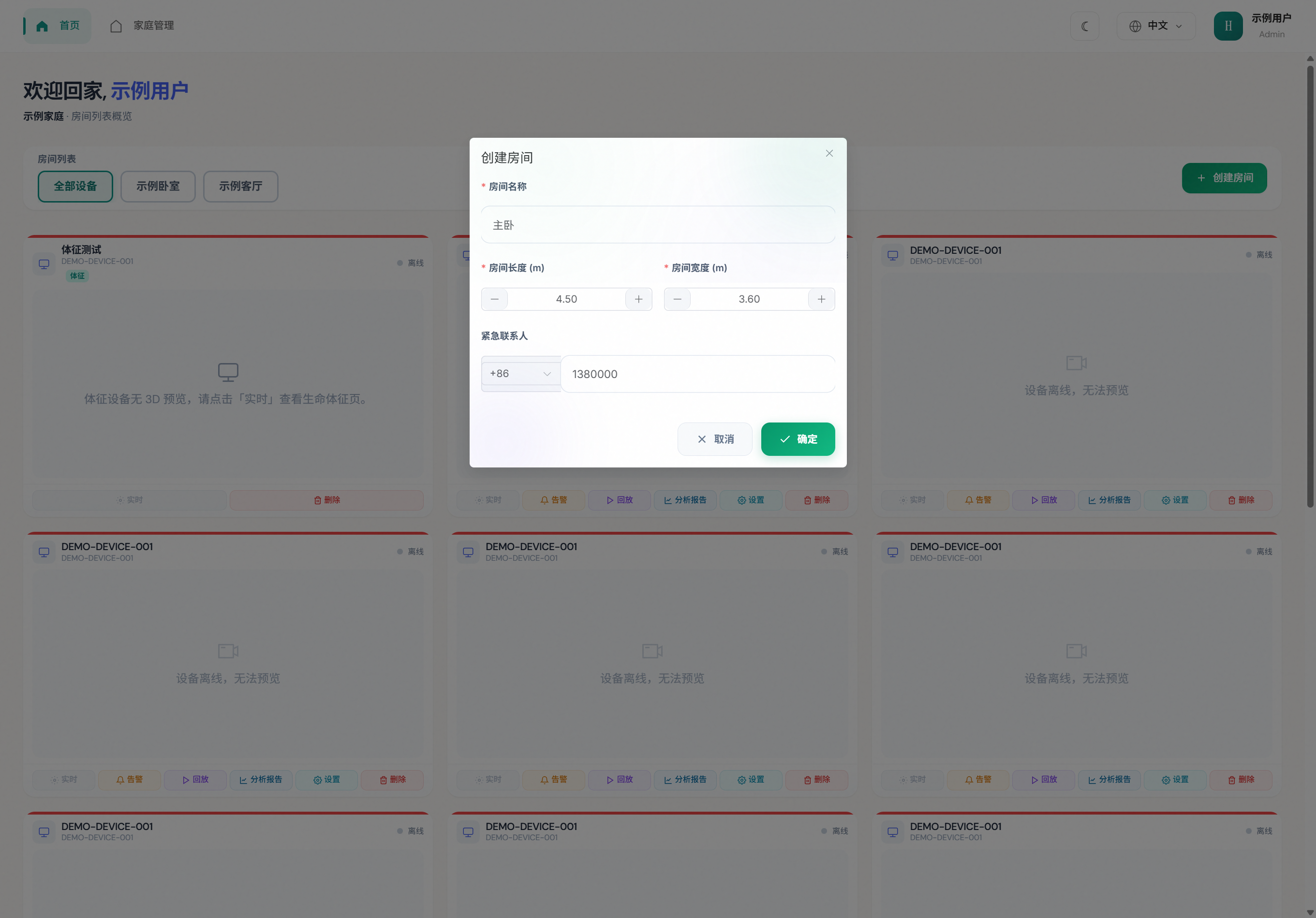
Form fields
| Field | Required | Notes |
|---|---|---|
| Room name | Yes | e.g. Bedroom / Living room; becomes a home-page tab |
| Room length (m) | Yes | Maps to canvas X (horizontal); about two integer digits + two decimals (e.g. 6.50) |
| Room width (m) | Yes | Maps to canvas Y (vertical); same number format |
| Emergency contact | No | Digits only; pick or type a country code on the left |
Common country codes: +86 (default), +852 / +853 / +886, +81 / +82 / +1.
Tap Confirm. A new room tab appears with “length × width”.
TIP
Ceiling height is not on this form. Set it later in Room settings (default about 2.80 m, allowed 1.5–6 m). Accurate size helps feature-zone coordinates and device orientation previews.
Permission
Non-admins cannot create rooms. Deleting a room also removes every device in it and cannot be undone (see 5.8).
5.2 Where to open Room settings
- On the home page, select a specific room tab (not All devices).
- Tap Room settings next to the room title.
- Or open Room settings from the top bar and pick the room from the list.
5.3 Room info parameters
The left panel Edit room info (or the matching mobile menu) contains:
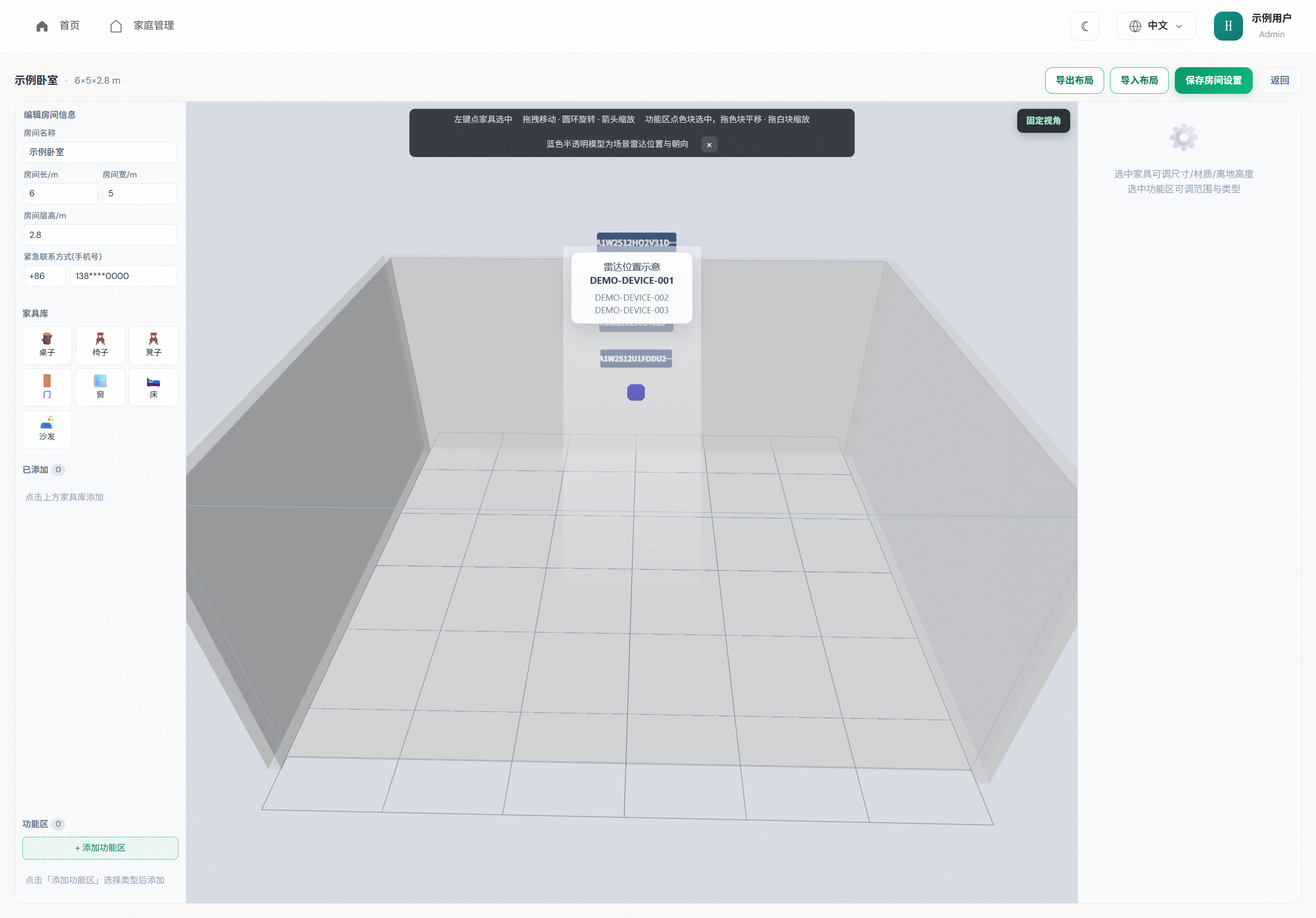
| Parameter | UI label | Notes |
|---|---|---|
| Name | Room name | Required; save before it updates the home tab |
| Length | Room length / m | Required, > 0; canvas X range |
| Width | Room width / m | Required, > 0; canvas Y range |
| Ceiling height | Ceiling height / m | Required, 1.5–6 m; placeholder 2.80 |
| Emergency contact | Emergency contact (phone) | Optional; country code + digits |
Coordinate system: origin at the room’s top-left, X right, Y down, in meters.
Save
After editing room info, furniture, or zones, tap Save room settings (or Ctrl / ⌘ + S). Unsaved changes show a marker on the button; leaving the page asks you to confirm.
5.4 Furniture layout: add and adjust
Layout is edited on the 3D canvas. On phones, use landscape first.
5.4.1 Add furniture
- Open the Furniture library on the left.
- Tap a type (table below).
- The item appears in the room and under Added.
- To remove: Delete in the list, or select it and press Delete on the keyboard.
Shortcut: Alt + N also adds furniture.
| Type | Typical use |
|---|---|
| Chair / stool | Seating |
| Table | Dining / desk |
| Bed | Bedroom; often paired with a suppression zone |
| Sofa | Living room; corner / chaise options |
| Door / window | Align with real openings — place these first |
5.4.2 Adjust on the canvas
- Select: left-click (or tap) the furniture.
- Move: drag the body to the target place.
- Rotate:
- drag the orange handle / ring on top; or
- edit Rotation (°) in Placement (snaps near 90°)
- Scale: drag the arrow handles.
Short hint: click to select → drag to move · ring to rotate · arrows to scale.
5.4.3 Fine-tune with Placement
| Field | How to use |
|---|---|
| Position X (m) | Left–right; origin at room top-left, X to the right; must stay inside the room |
| Position Y (m) | Front–back; Y downward; must stay inside the room |
| Height above floor (cm) | Usually 0 for floor items; raise doors/windows as needed |
| Rotation (°) | Exact heading |
Also available: Size / shape and Material / color (color is visual only).
5.4.4 Common Size / shape parameters
| Furniture | Typical fields |
|---|---|
| Common | Width, height, depth / length, thickness, roundness |
| Table | Top width / depth / height / thickness, leg thickness, leg inset |
| Chair | Seat width / depth / height, backrest height / angle, cushion thickness |
| Stool | Seat size, leg count / width |
| Bed | Mattress thickness, headboard height, footboard, post thickness |
| Sofa | Seat count, corner sofa, chaise length / width, back height / angle, arm width |
| Door | Openness, frame thickness, wall thickness |
| Window | Sill depth, pane count |
TIP
Shape parameters are for visualization. Detection quality still depends on real mounting — see the Deployment Guide.
5.4.5 Views
| Mode | Use |
|---|---|
| 3D view | Free rotate / zoom to inspect the whole layout |
| Fixed view | Lock the camera while dragging items |
The translucent blue model shows the radar pose in the scene; real mount values are still set under Device settings → Orientation.
5.4.6 Suggested order
- Set room length / width / height and save once.
- Place doors and windows first.
- Place bed / sofa / tables.
- Fine-tune until it matches the real room.
- Add feature zones if needed.
- Tap Save room settings (Ctrl / ⌘ + S also works).
5.5 Feature zones and zone parameters (important)
A feature zone is an axis-aligned rectangle on the room plan that defines alert or suppression rules.
The left rail Feature zones lists added zones (numbered color chips). Select one and the right panel shows Zone parameters: type, enabled, center / size / bounds.
On the canvas, types use different colors. Select a colored block to move it; drag the white handles (four corners + four edge midpoints) to resize. Shortcut: Alt + Shift + N.
Add, select, delete
- Under Feature zones, tap + Add feature zone and pick a type (each item has a color dot).
- A default rectangle of about 1 m × 1 m appears at the room center (or about 1/4 of the room if it is small), enabled.
- Move and resize it, or select it from the left list.
- To remove: tap × on the list, or press Delete while selected.
Hard limit: 20 zones total across all six types. The UI blocks adding more when the limit is reached.
Zone parameters
After you select a zone, the right panel (or the mobile drawer) shows these fields. Center, size, and bounds stay in sync.
| Group | UI label | Meaning |
|---|---|---|
| Type | Zone type | Switch among the six types; the list on the left can change it too, and the canvas color follows |
| Switch | Enabled | On = the rule is active; off = ignored and drawn gray |
| Center | X (m) / Y (m) | Rectangle center |
| Size | X (m) / Y (m) | Width and height; minimum about 0.05 m |
| Bounds | X min / Y min / X max / Y max (m) | Four edges, about two decimal places |
Coordinate system: origin at the room’s top-left, X right, Y down, in meters.
Checks before save:
| Check | If it fails |
|---|---|
| All four edges are numbers | Zone n has invalid coordinates |
| X min < X max and Y min < Y max | Zone n must have min < max |
| The rectangle is fully inside the room | Zone n must stay inside the room |
| Type is one of the six | Zone n has an invalid type |
Then tap Save room settings (or Ctrl / ⌘ + S). Zones are saved with room info and furniture.
Six zone types
Menu and canvas colors (customer-platform 3D editor):
| Type | Canvas color | Meaning |
|---|---|---|
| Suppression | Red | Falls inside the zone do not raise fall alerts (e.g. bed) |
| Dwell | Green | Watch for staying too long |
| Intrusion | Blue | Watch for entry into a restricted area |
| Multi-person | Purple | Watch for multiple people in the area |
| Leave | Amber | Watch for leaving this rectangle |
| Leave room | Teal | Watch for leaving the whole room |
Leave tracks the rectangle you drew. Leave room is about exiting the room — place it at the doorway or main exit; you do not need to cover the entire floor.
WARNING
After saving, behavior also depends on device online status, room binding, and device-side sync. Check the home page and the Alerts page.
Practical tips
| Situation | Suggestion |
|---|---|
| Bed causes false fall alerts | Add an enabled Suppression zone over the bed |
| Guard a doorway / bathroom | Use Intrusion |
| Care about long sitting / lying | Use Dwell |
| Care about leaving a local activity area | Use Leave |
| Care about leaving the bedroom | Use Leave room |
5.6 Upload layout photos (optional)
If Upload layout appears in the toolbar, take photos of the four walls to auto-generate or refresh furniture:
| Cell | Wall |
|---|---|
| A | Top |
| B | Left |
| C | Right |
| D | Bottom |
Upload all four, then tap Submit layout. Treat the result as a starting point — still verify on the canvas and Save room settings.
5.7 Import / export layout
- Export layout: room size, furniture, and zones (not emergency contact)
- Import layout: overwrites size / furniture / zones, not emergency contact; you still need Save room settings
5.8 Delete a room
With a specific room selected, an admin can tap Delete room.
DANGER
All devices in that room are removed as well. This cannot be undone. To rename or resize, use Room settings instead of delete-and-recreate.
5.9 Relation to devices
- You must have a room before you can add a device. All devices view cannot add.
- Bind devices to the room so alerts, live views, and replay aggregate correctly.
- Mount height, tilt, floor position, and heading are set under Device settings → Orientation (next chapter).