S3 Networking
The device must join the network before you can see its status and use features on the platform. Use the QR code in the box, or follow the in-app networking prompts.
3.1 Ports and pairing button
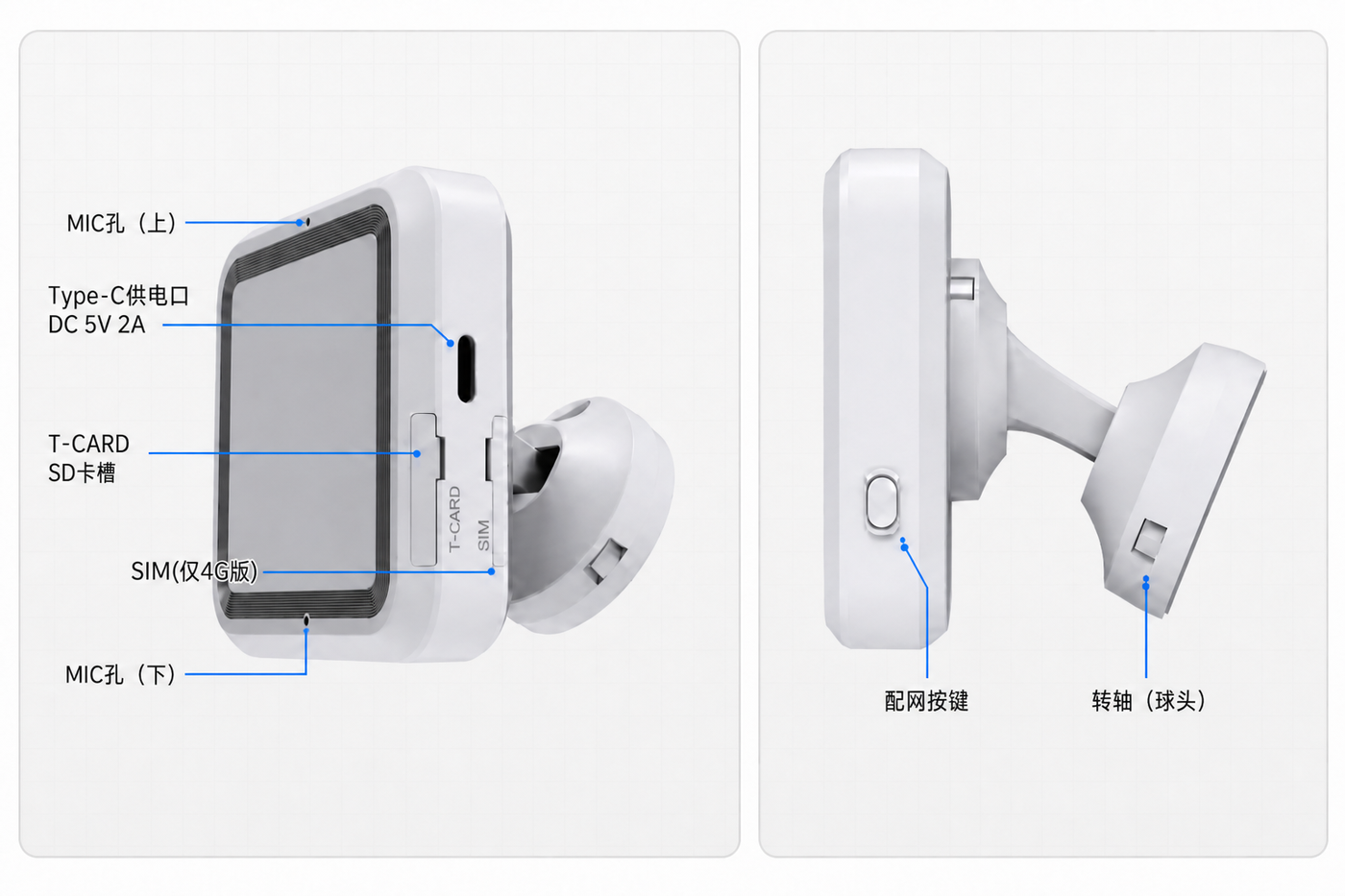
Confirm the power port and pairing button before networking:
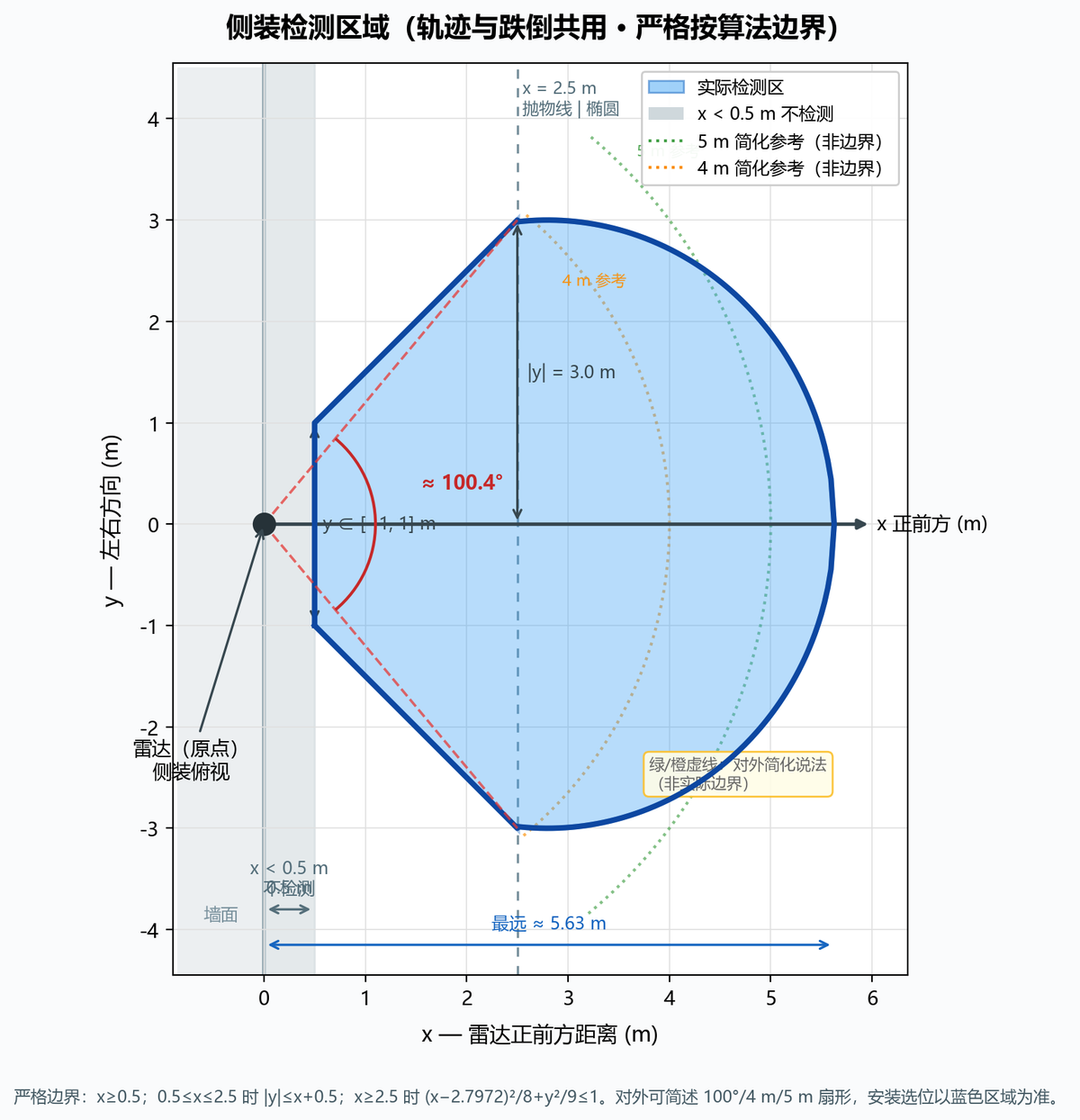
Side-mount coverage (use the deployment guide for siting):
3.2 Before you start
| Check | Notes |
|---|---|
| Power | Type-C 5V 2A |
| Wi-Fi | Prefer 2.4 GHz (see product manual) |
| Bluetooth | Turn on Bluetooth; some phones also require Location |
| Distance | Keep the phone near the device |
3.3 Status LED (summary)
Common patterns (see product manual for full details):

| Pattern | Typical meaning |
|---|---|
| Solid red (just powered) | Booting (~1 min+) |
| Blinking red | Not provisioned / pairing mode |
| Off | Running normally (not necessarily powered off) |
3.4 Steps (summary)
- Enter pairing mode (button or after power-on — see the manual).
- Open the networking page and follow on-screen steps near the device.
- Select your Wi-Fi and enter the password; wait for confirmation.
- Return to the customer platform, refresh the device list, and confirm it is online.