S2 Account & Login
Sign in to the customer platform with your phone number (or the ID the platform requires) to manage families, rooms, and devices.
2.1 Sign in
Open the customer platform to reach the login page:
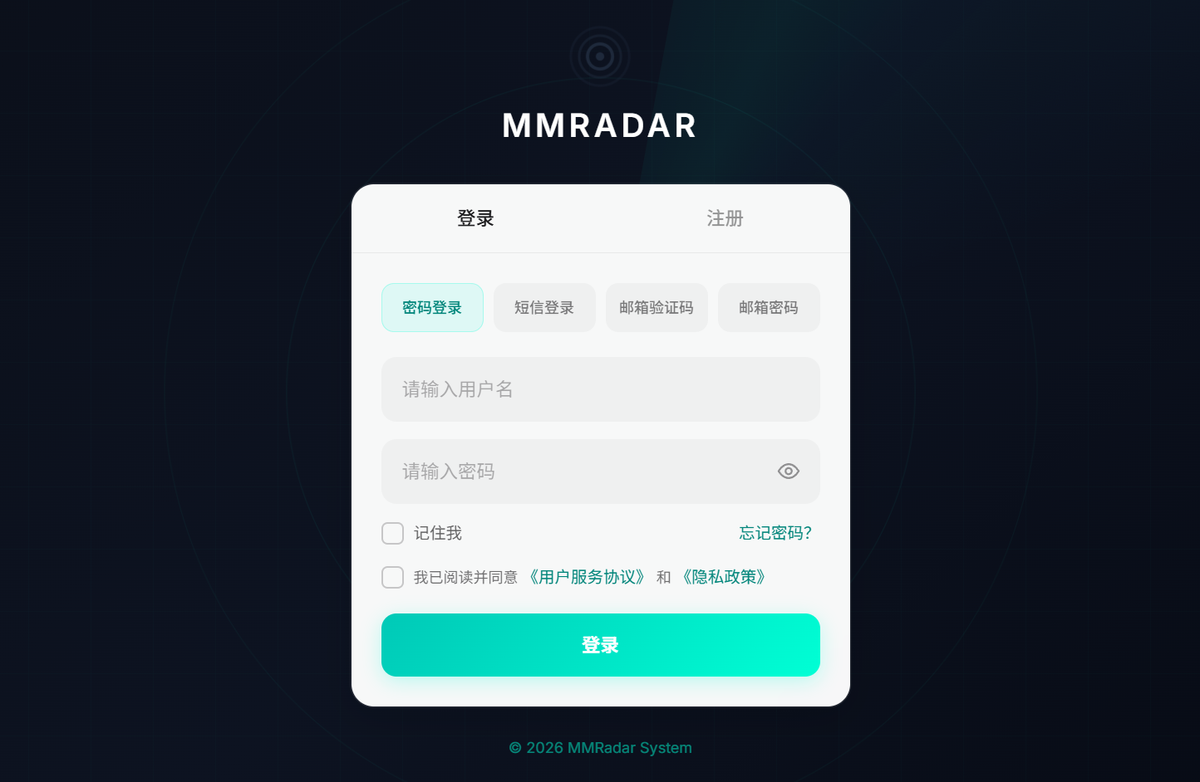
- Choose a login method (password / SMS / email — follow the UI).
- Enter account and password (or verification code).
- Accept the agreements and tap Login to open the home screen.
TIP
Passwords are case-sensitive.
2.2 Register (new account)
Switch to Register on the same screen:
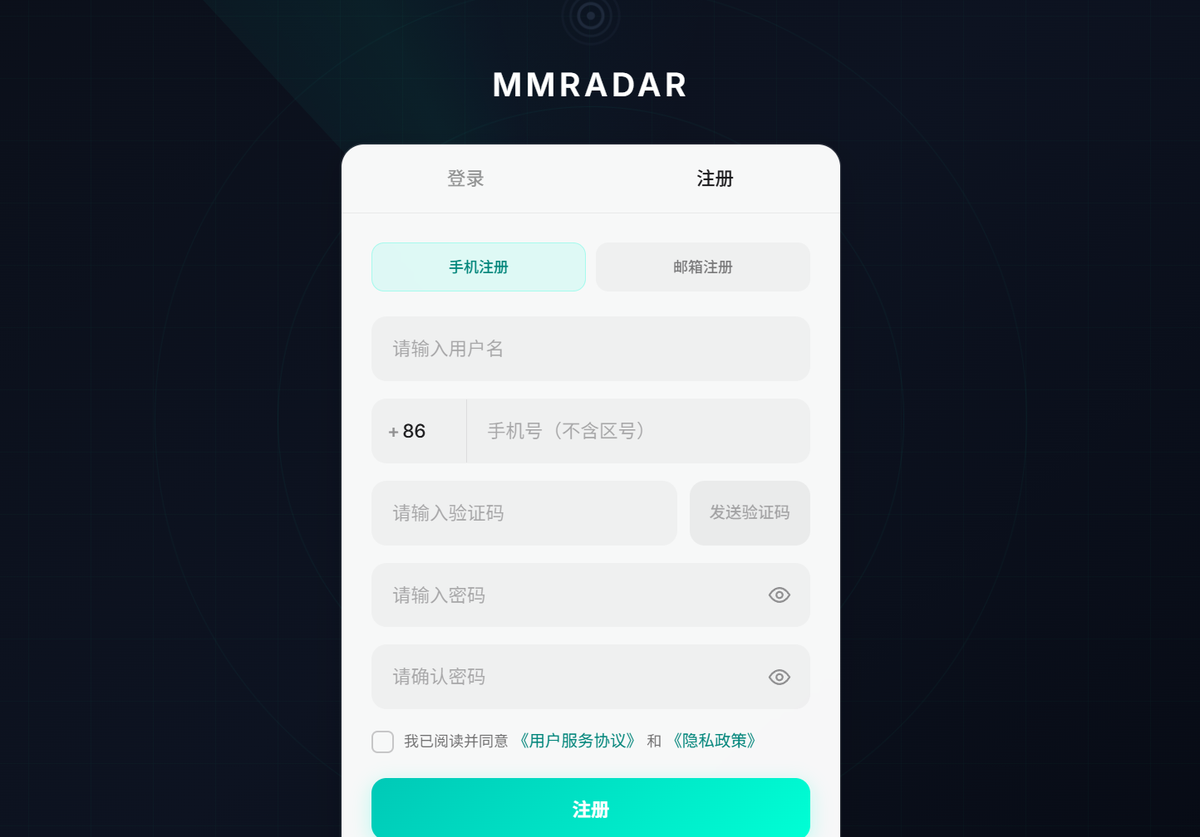
Fill username, phone (or email), code, and password. Do not keep real phone numbers in published screenshots.
2.3 Forgot password
On the login page, tap Forgot password? to open the reset screen:
- Choose SMS code or Email code (use the phone or email you registered with).
- Enter the number (with country code) or email, then tap Send Code.
- Enter the code and set a new password (both fields must match).
- Tap Reset password, then sign in with the new password.
TIP
Code validity follows on-screen hints. If you did not receive it, wait for the countdown and send again.
Signed-in users can change a known password in User settings.
2.4 User settings
Open User settings after sign-in to update profile fields:
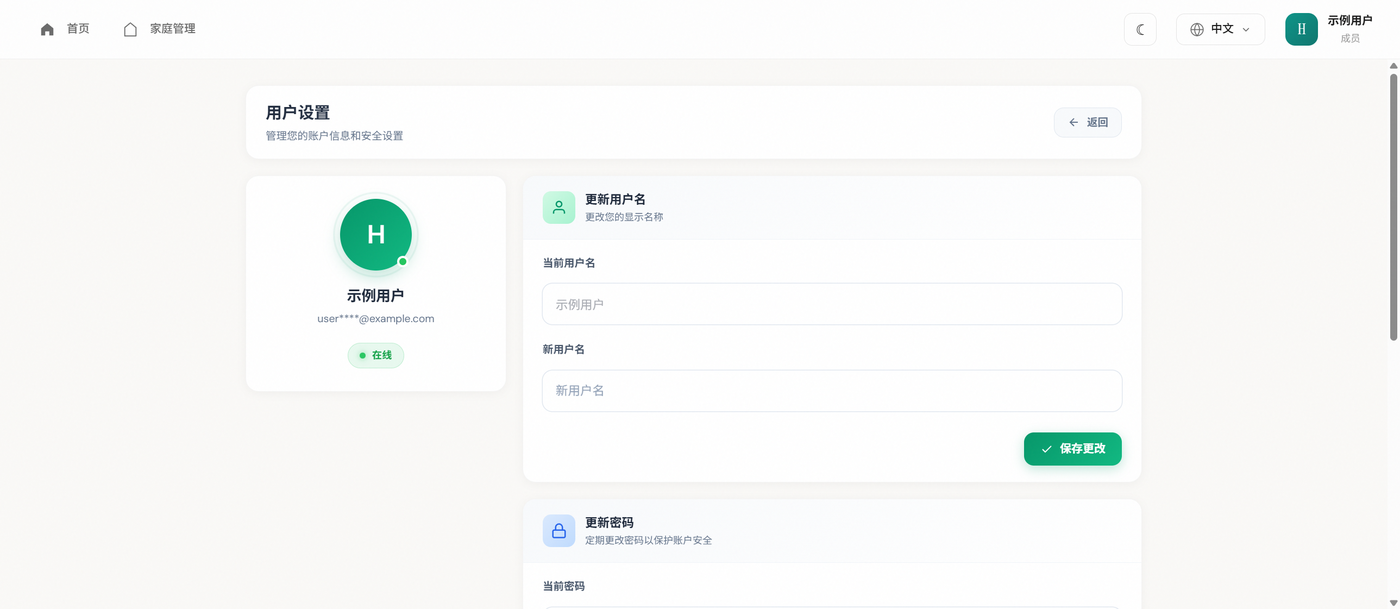
You can update username, password, and contact fields when enabled.
2.5 When you need to sign in again
If you have been idle for a long time or see a “signed out” message, return to the login page and sign in again.